How do you record a road trip on iPhone?
Record each day’s drive as you go: tap Start ride when you set off, put the phone in its mount, and hold End when you arrive. Roveri keeps the route, your speed, the elevation and the weather of that drive, and the drives of a trip come together afterwards as one journey, day by day.
Recording is free, there is no account to make, and the drives stay on your iPhone and in your own iCloud. Roveri records only when you start it, so the trip you keep is the trip you chose to keep.
Why the iPhone does not do this on its own
The iPhone already knows where you have been, in a sense: Significant Locations and the photos you took remember the places you stopped. What they do not keep is the road between them. Ask a phone for last summer’s coast drive and you get a handful of pins, not the line you drove, the climb over the pass or the hour it started raining.
A road trip journal app fills that gap. It follows the GPS while you drive and saves the line itself, with the numbers and the weather that go with it. Roveri does that one drive at a time, and you decide when each one starts.
Record a drive, step by step
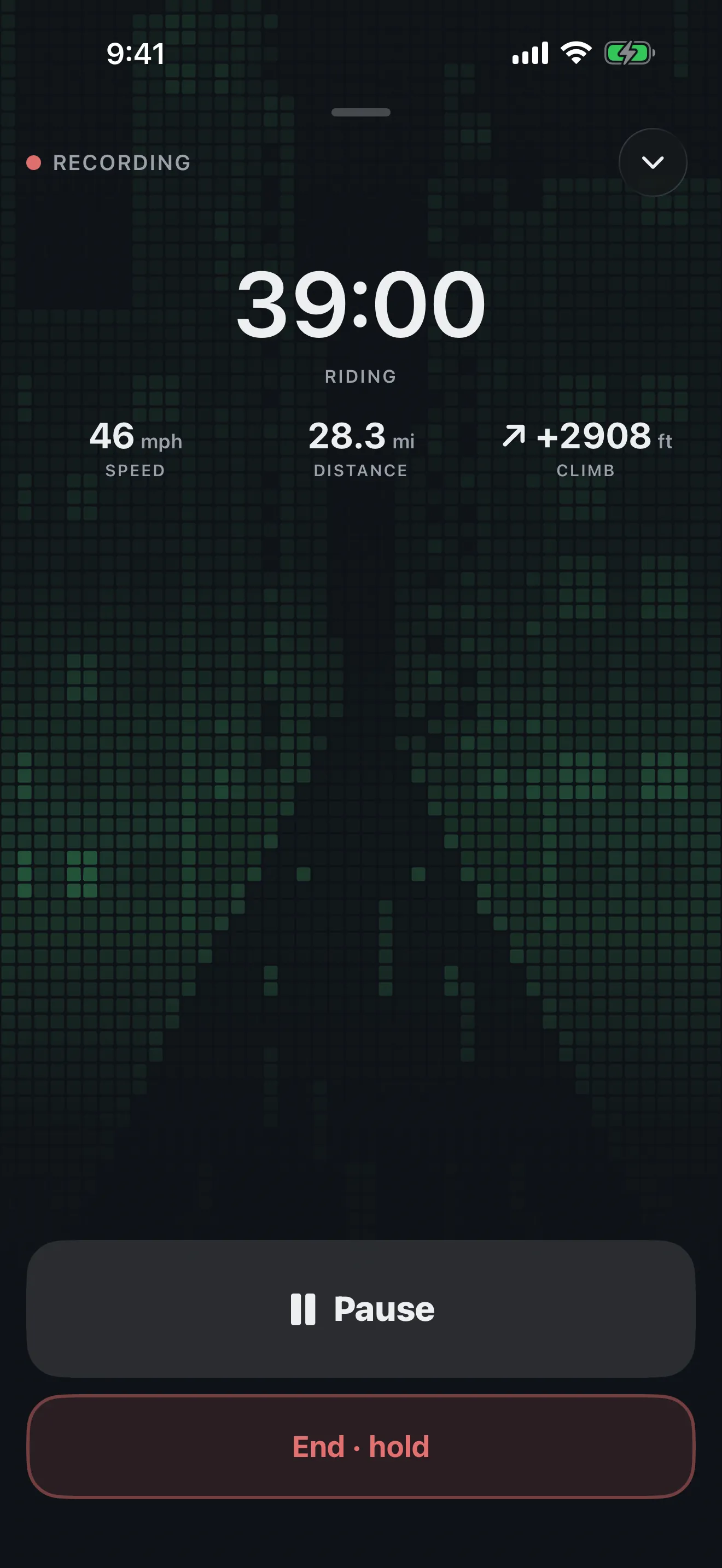
- Open Roveri on the Home tab and tap Start ride. The first time, iOS asks for location access once. Recording begins straight away; there is nothing to plan or name first.
- Put the phone away. In a dashboard or windscreen mount, in the door pocket or in a passenger’s hand, it records with the screen off. Your navigation app can stay in front; Roveri keeps recording behind it.
- Pause for a long stop if you like. Pause on the recording screen, or on the Lock Screen without unlocking. Paused time is left out of the moving time, and the map draws no line across the stop.
- End the drive when you arrive. On the recording screen, press End · hold and keep holding while it reads Keep holding…; it is a hold so a bump in the car cannot end a drive by accident. The expanded Dynamic Island has an End button too.
That is the whole routine. On a trip of several days you do it once a day, or once per leg, and the evenings in between are simply not recorded.
What the Lock Screen and Dynamic Island show
While a drive is recording, it sits on the Lock Screen and in the Dynamic Island as a Live Activity, so a glance at the phone in the mount is enough.
- Lock Screen: the elapsed time, the distance and the climb, the weather and where you are, with a Pause button (Resume while paused). It has no End button, so a tap on a locked phone cannot finish the day’s drive.
- Dynamic Island, expanded: the time, the distance and the climb, with Pause and End.
The recording screen itself is made for starting and stopping rather than for watching on the road: it does not keep the screen awake and has no live map. Swipe it down and it folds into a small player above the tabs while recording carries on.
What each drive keeps
When you end a drive, Roveri saves it as its own entry:
- the route on a map, which you can paint by speed, by elevation or by road type;
- the numbers: distance, moving time, top speed and total climb;
- the weather along the way: up to eight samples taken along the route from Apple WeatherKit, so the drive remembers the fog at the coast and the heat inland;
- the places, which name the drive after where it started and ended.
The same applies on a motorcycle; the app calls every recording a ride, whether you drove it or rode it.
THE DRIVES ADD UP
Three days, one journey.
Each day's drive is recorded on its own. Afterwards the drives of a trip sit together as a journey: the whole trip on one map, each day in its own colour, with the total distance, drives and hours on the road.
- One recording per day or per leg; no long recording left running overnight
- Roveri offers to make the journey after two long days in a row
- Journeys are free, like recording
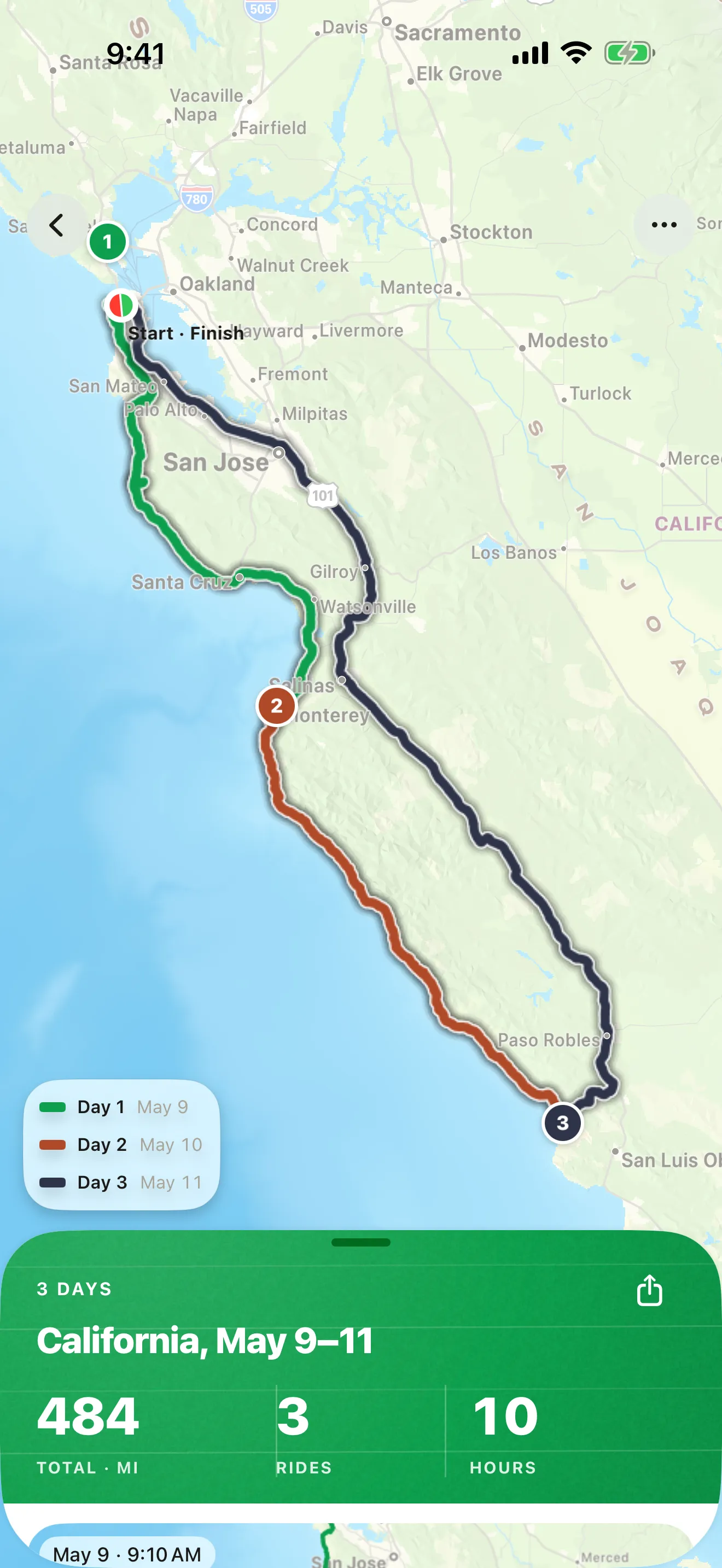
The trip in the picture is a real one: California, May 9–11, 484 miles over 3 rides and 10 hours, from San Francisco down the coast past Monterey and back inland.
Battery and background recording on a long day
Recording a drive keeps the GPS working in the background, and Apple says what that costs on Roveri’s own App Store listing:
“This app may use your location even when it isn’t open, which can decrease device battery life.”
In a car the fix is easy: keep the phone on a charging cable or a charging mount for the day’s drive. On a bike, power from the bike or a battery pack does the same. Roveri needs iOS 18.6 or later.
For keeping the days together, see a multi-day road trip, day by day. On a motorcycle? The riding version of this guide, with gloves, the bar mount and the Lock Screen on the move, is how to record your motorcycle rides on iPhone.
Common questions
Does Roveri start recording by itself when I drive?
No. Roveri records only when you tap Start ride, and stops when you end it. That keeps the commute and the supermarket run out of your trip unless you want them in.
Can I use Google Maps or Apple Maps while Roveri records?
Yes. Roveri records in the background, so your navigation app can stay on screen while the drive is recorded. Roveri is a journal, not a navigator, and does not give directions.
Should I record a multi-day road trip as one long recording?
No, record each day or each leg on its own and end it when you stop for the night. Afterwards group the drives into a journey: the whole trip on one map, each day in its own colour, with no line drawn across the nights.
Is recording a road trip free?
Yes. Recording, your full history, journeys and sharing are free. Roveri Pro adds the Coverage Atlas, Where to ride, GPX export and deeper analysis.
Roveri is an iPhone app that records every drive and ride (iOS 18.6 or later), free to download with an optional Pro tier. Read the full, code-verified fact sheet on the Roveri press page, or get Roveri on the App Store.