How do you keep a road trip day by day?
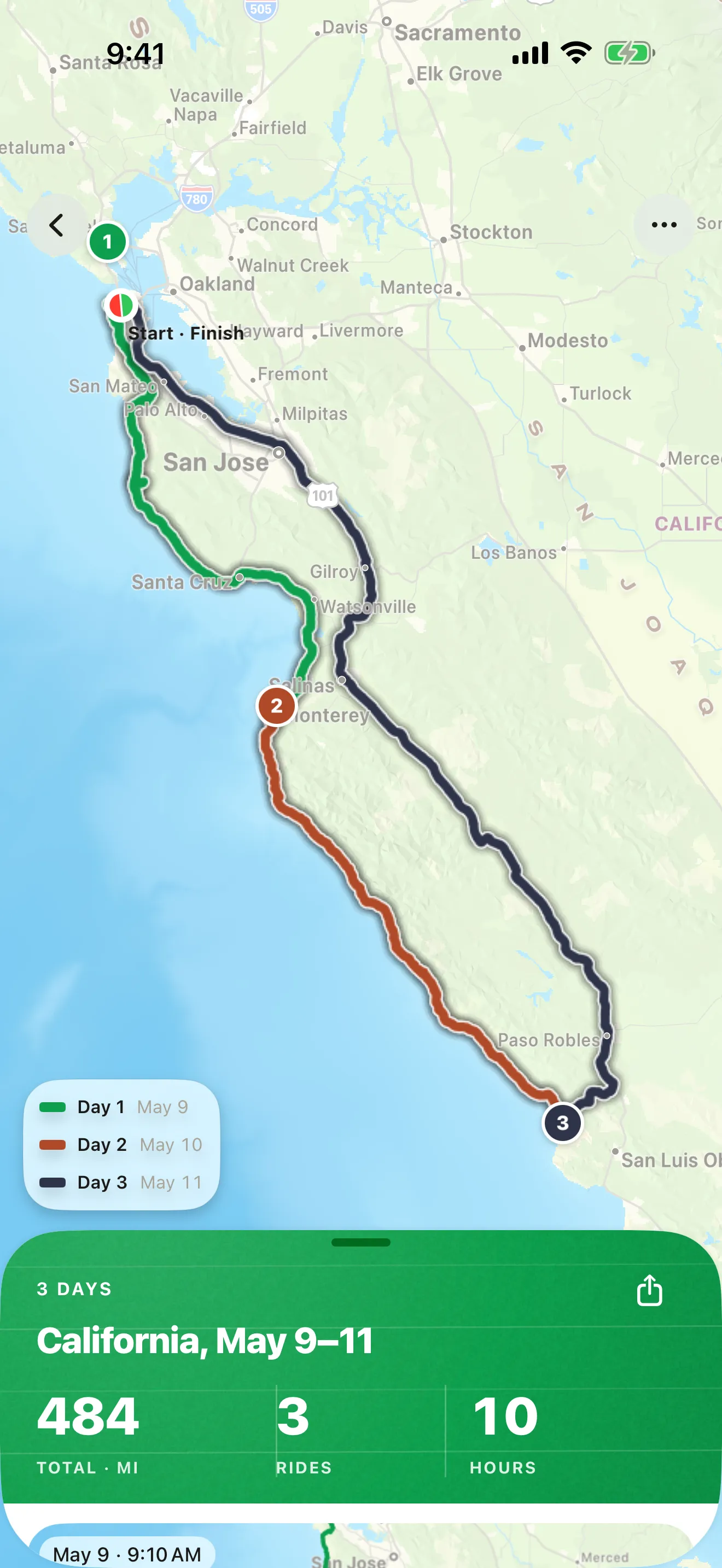
Record each day’s drive on its own, then keep the days together as one journey. In Roveri the journey is the whole trip on one map, each day drawn in its own colour, with the total distance, the drives and the hours, and a card for every day that opens that day’s drive.
It works as a road journal: nothing to plan before you leave, nothing to type on the road, and at the end of the trip the days are already in order. Recording and journeys are free.

What a day-by-day road journal needs
A road trip is remembered by its days: the morning you left, the day the coast road was closed, the night you arrived somewhere later than planned. A useful journal keeps exactly that shape:
- every day kept on its own, with its route, distance, time on the road and weather;
- the whole trip together, so it does not dissolve into a list among everyday drives;
- the nights left out: no line drawn from the hotel car park to the next morning’s start, and no hours counted while you slept.
Recording one drive per day and grouping the days afterwards gives you all three. A single recording left running for three days gives you none of them.
From departure to the last day
Here is how a real trip reads in Roveri: three days in California, May 9 to 11.
Day 1, before you leave. There is nothing to set up. On the morning of May 9, open Roveri on the Home tab and tap Start ride as you pull away; the first leg runs from San Francisco down to Monterey. When you arrive, press End · hold and keep holding. The day is saved with its map, distance, moving time and the weather along the way.
Day 2, the coast. Same routine: Start ride in the morning, End · hold in the evening. That day’s drive runs down the coast to the area near Paso Robles. Because both days were long and came one after the other, Home asks: Two days on the road. Make it a journey? Say yes and the two days become a journey there and then. Say nothing and nothing is grouped; it only suggests.
Day 3, home. Record the drive back inland. When it ends, Home offers to add it to the journey you already have. Accept, and the trip is complete: 3 days, 484 miles, 3 rides and 10 hours on the road.
After the trip. The journey card in History stands in for the three drives, and its title is the trip itself: the region and the dates, here California, May 9–11.
If Home did not offer it
The suggestion appears after two long days in a row: a drive of at least 100 km (about 62 miles) or three hours, when the drive before it was long too and ended within about eighteen hours. Shorter days, or a trip from last year, are grouped by hand:
- Open the History tab.
- Tap + Journey at the top.
- Pick the drives of the trip.
- Tap Make a journey.
To add a day you forgot, open that drive, tap the ••• button and choose Add to journey…: it lists the journeys within three days either side of it. A journey takes two drives or more, up to sixty.
How the finished trip reads
Open the journey and it shows the trip day by day:
- The map. Each day is its own line in its own colour, numbered where it starts, and a legend names them: Day 1, Day 2, Day 3, each with its date. There is no line between the place you stopped one evening and the place you set off the next morning, because nobody drove that.
- The trip in figures. How many days, the total distance, the number of drives and the hours on the road.
- A card for each day, with its date and the time you set off. Tap a day and its drive opens with its own map, its numbers and its weather.
Days are counted as the days you set off, in local time. Two drives on the same day, say a morning leg and an afternoon leg, make one day of the trip. Grouping changes none of your totals: every drive is still counted once, and Ungroup in the journey’s ••• menu gives every drive back exactly as it was. Journeys sync across your devices through iCloud with the rest of your journal.
EVERY DAY, ITS OWN DRIVE
Open any day of the trip.
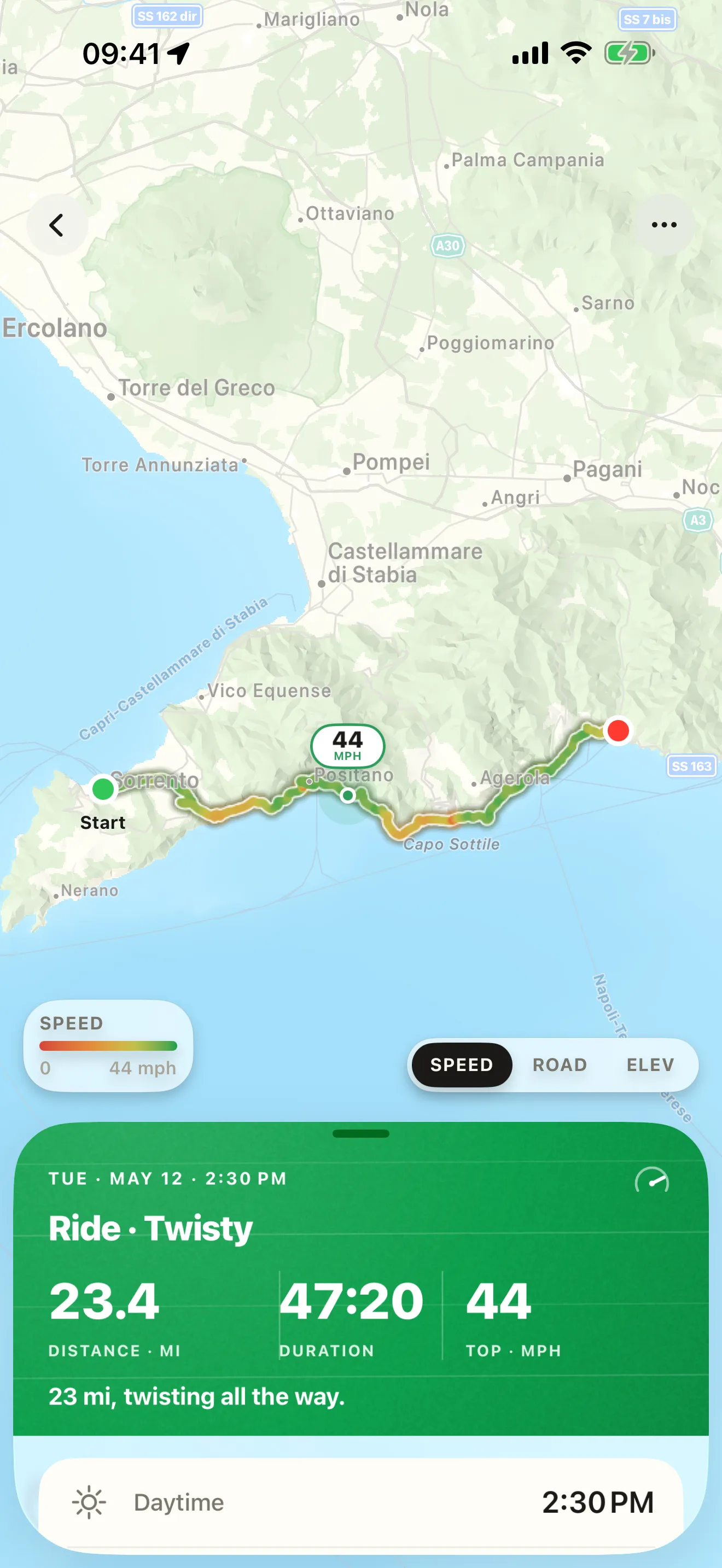
A day of the journey is a full drive: its route painted by speed, by elevation or by road type, its distance and time, and the weather it was driven in. The journey adds the trip on top; it never merges the days into one long line.
When the trip is over
A finished journey is easy to hand on. From the journey’s share button you can send a picture of the trip, or a link that opens the whole trip day by day in any browser, both free: see how to share a recorded road trip as a link. With Roveri Pro you can also export the whole trip as one GPX file.
On a motorcycle tour, where the legs are recorded separately and every ride’s own figures matter, the riding version is how to group a motorcycle tour’s rides into one trip.
Common questions
Do I have to create the trip before I leave?
No. You record each day as you go, and the journey is made afterwards: Roveri suggests it after two long days in a row, or you make it from History with + Journey and Make a journey.
What counts as a day of the trip?
A day is the date you set off, in local time. Two drives on the same date make one day with two drives, so a morning leg and an afternoon leg read as a single day on the map and in the legend.
Can I add a day I forgot to include?
Yes. Open that drive, tap the ••• button and choose Add to journey…; it lists the journeys within three days either side of the drive.
Is a journey free?
Yes. Making a journey, viewing it, and sharing it as a picture or as a link are free. Exporting the whole trip as one GPX file is part of Roveri Pro.
Journeys are part of Roveri, the iPhone app that records every drive and ride (iOS 18.6 or later), free to download with an optional Pro tier. Start with how to record a road trip on iPhone, read the full, code-verified fact sheet on the Roveri press page, or get Roveri on the App Store.